Posts

Presence Information from Citrix Sessions
Image
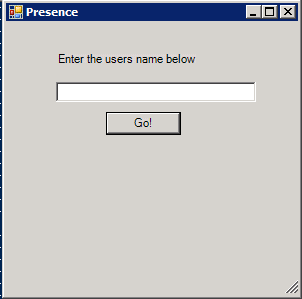
I was investigating a quick method of getting user presence information for our contact centre to see who is available in the business.  We do not have any unified communications tools as yet (hopefully we may get lync at some point though!) and I thought there must be a quick way of achieving this. My intial thought was creating a internal web server which acted like FourSquare, users could check in and out.  The problem is that it is useless if people do not use it. I then thought that nearly all of this information is already available through the Delivery Services Console in XenApp (app center, presentation server console, citrix management console.....or whatever it will be called next!!).  You can browse for sessions and see who is logged in and who is idle. The vast majority of people (over 90% of our users) login to the same published desktop which means 1 script will produce decent results. I created a service account which was a custom administrator...

Wyse ThinOS 7.1 session disconnecting

We utilise Wyse ThinOS terminals for users at my organisation.  They connect to a full published desktop based on XenApp 6.  The Wyse terminals have been really useful as they load very quickly and configuration is easy using INI file and DHCP flags.  This means we can ship a new unit out to site with zero configuration.  True plug and play in action!!! We have started to purchase some newer terminals recently including the R10 and T10.  The R10 is a little older and originally came with 7.0 firmware.  The T10 is a newer terminal which is the replacement for C10 and S10 terminals.  It has a small form factor and can handle multi monitors very well indeed. The T10 ships with firmware version 7.1.  We have found this to be very problematic in our environment.  Users would start their desktops and get disconnected at random points in the day.  We downgraded any R10s with 7.1 firmware back 7.0 and it fixed the issue.  Unfortunately ...

XenApp License Acquisition Error (-25)

We recently experienced a Citrix XenApp error when migrating our users over to the new farm.  This is documented in the following KB article http://support.citrix.com/article/CTX124790 This stopped any new users connecting the desktop. Our licence server had 1 file installed with 7 licences are various amounts purchased through the years.  Some of these were originally owned by different organisations hence the split. We found that only 1 licence was valid for SA (subscription advantage) in the licence console.  When concurrent connections for this licence were full, no more connections were allowed. We proved that all our licences had valid SA in the MyCitrix.  We tried to reallocate the licences as suggested in step 3 of the above ctx article Verify the "SA Date" column is equal to or greater than 2010.0317. If the SA date is prior to 2010.0317, you must allocate new Subscription Advantage Renewal licenses from MyCitrix.com and install them on...

Wyse ThinOS 7.1 Xenapp USB not mapping

Hi there Wyse have recently released the 7.1 version of their ThinOS firmware.  When testing this in our environment it broke USB mapping from our Wyse terminals for Citrix XenApp 6.0. Normally USB drives are mapped under the Z drive.  We found that since 7.1 Wyse are now classing the USB drive as a removable drive, Makes sense right? Previously they classed this as a Floppy Drive, our Citrix Policies allowed Floppy drives for a select few users and we disabled removable drives.  As soon as we allow removable drives all starting working fine. Thanks Sam

Windows 2008 R2 shared files do not automatically show

We found a really annoying issue when implementing our new XenApp 6 desktop.  Users were saving files onto the desktop, but they would not appear until they pressed F5.  The users desktop is redirected to their Home Drive share.  After more investigations we found that this problem occurred for any shared drive, even if it was to \\computername\c$ of the same computer you were on. After searching the Internet we found no way to resolve this issue.  There is mention of changing a registry key to "DontRefresh" which had limited success with others but didn't work for us. We found this problem did not exist on another server in our environment and then we started looking into the differences. Eventually we found it Remove the following registry keys HKLM\SOFTWARE\Microsoft\Windows\CurrentVersion\Policies\Explorer\NoRemoteRecursiveEvents HKLM\SOFTWARE\Microsoft\Windows\CurrentVersion\Policies\Explorer\NoRemoteChangeNotify Restart explorer and try again! ...

Citrix XenApp 6 Policies not applying

If you have read some of my other posts recently you will know that I am in the process of designing and building a new Citrix environment to replace my companies old PS4 desktop setup. Recently we found that Citrix Policies were not applying on a consistent basis.  What normally occurs is that a key is created HKLM\software\policies\ .  This contains all of the policies which are relevant to your particular session. During our testing we found that this key was not being written when logging on, which meant users had access to everything they wanted including client drives from home! The problem was even harder to diagnose though, we saw that when Group Policy was updated automatically every 90 minutes during a session, the was written with the correct settings.  This meant nothing as the shell had already been setup and these settings would not apply. As these keys are not deleted on logoff, when new users logged in they would inherit the settings of another use...

Memory error when trying to print pictures

Image
As mentioned in my previous blogs, I am building a XenApp 6 environment for my organisations to replace the current PS4 farm. I am fixing all of the little niggles at the moment and I came across a really annoying issue. Environment ======================= Windows 2008 R2 Standard VMware vSphere 4.1 6GB Ram 2vCPU XenApp 6.0 Issue ======================= When right clicking an image and selecting Print from the context menu, a number of error messages appearing saying Your pictures can't be printed because this error occurred: There isn't enough available memory to print your pictures. Close some open programs, and then try again. Now, troubleshooting was a little difficult but this is the approach I took Memory - 6GB for 2 users...no issues showing in task manager etc. Permissions - occurs for all users, even local administrators Applications - uninstalled all other applications from server, problem still occurred Pro...